

Password managers increase security and make life easier.
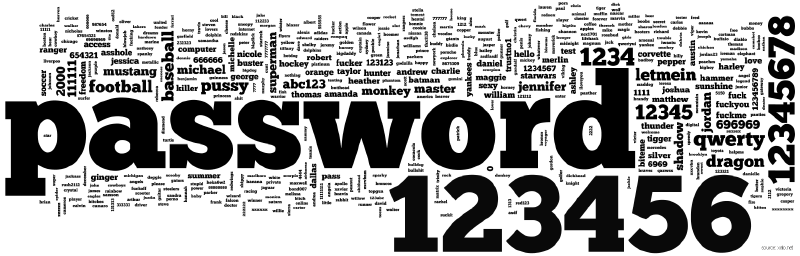
We all have so many passwords in our life that using them is often viewed more as an inconvenience than necessary security practice. And, because typing in and remembering a long, secure password is much harder than a short, simple one, most people follow the path of least resistance, and use their dog’s name followed by their house number.
Worst. Idea. Ever.
In the last 3 months alone, I’ve had two friends of mine have their email and Facebook account accessed by someone in another country. These attacks were possible because of poor password practice. In one case, they used a password that was easy to guess, and in the other, they used the same password for all their sites, and had used it for many years. Some forgotten online account’s database was likely compromised by an attacker, and – when your username on that service is your email address – it’s then trivial for the attacker to gain access to your entire digital life.
So, it is imperative that you use strong, random (or pseudo random) passwords, that are unique to each account you are registered to.
Of course, this isn’t possible if you’re relying on your brain to remember them all, so it’s therefore similarly imperative that you use a password manager to keep track of them all.
Choosing a password manager #
What you may not know is that password managers offer features that go beyond just providing a place to store your passwords – most can automatically enter your password into sites, which makes highly secure passwords easier to enter than even your mother’s woefully weak ‘daisy123’.
They also offer you a secure location to store information other than passwords, too – including bank account details and PINs, passport numbers, bitcoin wallet addresses, email and other configuration settings, encryption keys, client details, and some even allow you to include photos and other files – although the interfaces aren’t really optimised for browsing image libraries.
There is a great number of competing password managers out there, with different features, interfaces, and platform compatibility. Popular vendor examples include: LastPass, 1Password, SplashID & the no-cloud SplashID Classic, and Roboform. Some of these are freemium, most are paid. Alternatively, there are the open-source KeePass, and Password Safe.
As I’m a big fan of the open source movement, and because there are ports available for pretty much every platform ever, my password manager of choice is KeePass, available for free from keepass.info/download.html. [Ed: I’ve actually grown to prefer the KeepassXC variant, which works better on Mac (I use both Windows and Mac), and receives more regular updates. It uses the same .kdbx file-type and format as KeePass, so you can switch between the two programs. Go read their documentation & getting started guide here.]
So, for the remainder of this guide, I’ll use it as the example.
How do they work? #
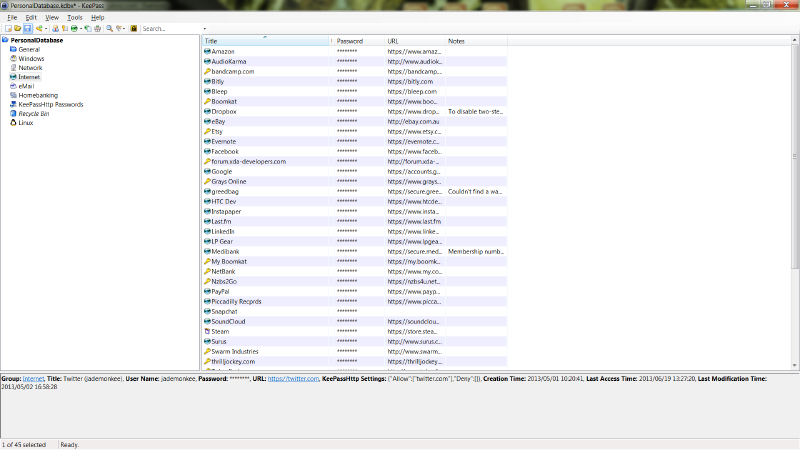
Password managers keep your passwords stored in an encrypted database – a single file that you can store anywhere, from an external drive, to your Dropbox. As this file is encrypted using a password of your choosing, this password becomes the chink in your digital armour. It’s therefore absolutely critical that you create a strong one (see below). This is the only password you’ll ever have to remember again, so you can afford to dedicate the time to memorising a string that may otherwise be a little difficult to remember.
The KeePass v2.x application (which uses the v4.x .kdbx database format) allows you to store fields of any type or name of your choosing, including binary objects, and you can organise your entries by category (eg ‘Internet’ or ‘Banking’). The software also includes a random password generator, optional reminders to change older passwords, multiple simultaneous users, and more. It even supports plugins to extend this already rich feature-set.
In picking a password to encrypt your password database with, you’ll need one that is simultaneously memorable and super strong. The best way to achieve this is to string together four or more random words (the generator at preshing.com will do this for you and provide you with a relevant xkcd comic, too).
Then, make some letters uppercase, substitute some for numbers, and throw in a few symbols for good measure. It’s a lot easier to remember
l4uNder!ngsnaGgyj#rkinRac1ng(laundering snaggy jerkin racing) than it isQMq!cxMd*1u9$@6kDvbRtW?hVVoTd, while the difference in ‘hackability’ is quite small.
What can you do with them? #
A password manager is only as good as its accessibility – if you can’t use it at a time when you need to enter a password, then it has failed. So, you not only need to have the same program (or a compatible equivalent) running on every platform/device that you use, you also need that copy to be able to access the same database – and the easiest way to do this is to sync that database to the cloud.
LastPass and others offer this functionality natively, but it’s just as easy to do with KeePass, too, by saving the database somewhere in your Dropbox folder (a free account is all you need).
But wait, isn’t this a security risk? In truth, it is. However, your database is encrypted, so – as you used a strong password to encrypt it – it can’t actually be read by anyone that gets their hands on a copy. Additionally, the files stored on your Dropbox are also encrypted using a secure password stored in your password manager, so can’t be read by anyone else (except maybe the NSA – unfortunately, Mr Snowden wasn’t available for comment at the time of writing). Also: you should use an MFA app such as Authy.
Portable power #
KeePass doesn’t have to be installed on the computer that you’re accessing it from – it can also be run directly from a USB flash or external hard drive. When you downloaded it, you could choose between the .exe version, or a .zip version. To make it a portable installation, simply extract the .zip version onto your external drive. Users of the PortableApps.com platform can install a native KeePass version – however, I couldn’t get plugins to work with it (YMMV). To work around this, I simply extracted the .zip version into its own folder in the \PortableApps\ directory. It even appears in the PortableApps menu, like the other apps.
If you’re running a portable password manager, chances are that you’re not on a PC that has the Dropbox sync software installed (for example, at work or a library). Thankfully, there is a KeePass plugin available that will read from and write to Dropbox directly. It’s called KeeCloud and it’s available from: github.com/devinmartin/KeeCloud [Ed: now abandonware - you’re recommended to just use the Dropbox desktop client, so Portable App installers will have to jump through a few hoops to get their latest .kdbx file from Dropbox while on-the-go]. To set it up, download the install file and place KeeCloud.plgx in the KeePass directory, and restart KeePass.
You have two options to sync your DB: either by opening it from and saving it directly to Dropbox, which will be suitable for most users; or using KeePass’ in-built synchronisation system to sync any changes to Dropbox while working from a locally stored copy, which is a better setup if multiple people/computers are accessing the DB.
You can get an overview of the two methods at: bitbucket.org/devinmartin/keecloud/wiki/Workflows [Ed: dead link], but I’ll focus on the former here.
First of all, I’m assuming that you’ve already saved your database to Dropbox, likely from your main PC’s installation (as this usage only really applies to secondary copies). Within KeePass (it doesn’t matter if your database is open or not), go to Tools -> URL Credential Wizard, and select the service you wish to configure, e.g. Dropbox, and hit next. A browser window will open, where you will log into Dropbox, and approve the app. Once you have, go back to the wizard, and hit next.
You will then be shown the username and password to use when accessing the database stored in Dropbox. Note them down (if your database was already open, it’ll give you the option to save it there).
Next you’ll want to open the file from your Dropbox URL directly, using the credentials you just noted down. Click File -> Open -> Open URL. Enter the directory in Dropbox where you saved your database, prepended with dropbox:// (eg dropbox://Apps/KeePass/MyDatabase.kdbx). In the fields below that, enter the username and password returned by your credential manager, and then set the dropdown menu to remember both your username and password.
From now on, when you open the KeePass app on your USB drive, you’ll notice on the ‘Enter Master Key’ dialog box that it’s accessing your Dropbox directly. If you modify anything, and hit save, it will then save it directly to your Dropbox, and propagate that file out to all your Dropbox clients.
If you run into problems, you can read a config guide at: bitbucket.org/devinmartin/keecloud/wiki/Configuration [Ed: dead link].
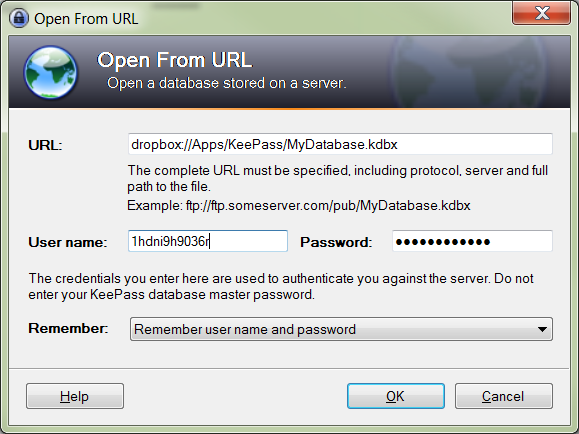
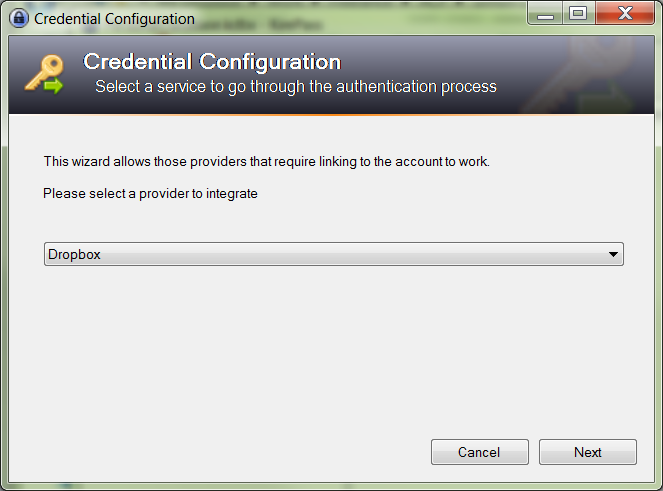
You can [Ed: could] set up KeePass to open your database directly from Dropbox.
I don’t trust the cloud #
If you’re irked by the cloud, and need to use KeePass on multiple PCs, you can always carry your database around on the USB flash drive that also holds a copy of KeePass Portable, and just copy it over manually whenever you update it, or use KeePass’ in-built synchronisation tools.
If you modify your USB version, and want to sync the changes to the copy you have on your home or work PC, simply plug in your USB drive, open your local copy of KeePass, go to File -> Synchronize -> Synchronize with File… and choose the database on your USB drive. The changes you made while out n’ about will now appear in your local database.
Alternatively, for a really portable version – the kind where you don’t even need to carry around physical media – you can run a web-based version of KeePass from your home PC, which can be accessed from almost any browser, including iOS’ Safari, and supports multiple simultaneous users.
There is a thorough ‘how to’ guide in the installation .zip, available from sourceforge.net/projects/webkeepass/ [Ed: now abandonware].
Auto-filling your credentials #
KeePass can semi-automatically fill in your usernames and passwords into websites, using its ‘Auto-Type’ option, which simulates you typing your username, pressing tab, then your password, then enter. To use this, just switch into KeePass from the window requiring your credentials, find the correct entry in your database, and hit Ctrl + V (or the ‘Perform Auto-Type’ button in the tool menu). KeePass will automatically switch over to your previous application, and enter in your credentials for you.
If you are having trouble getting Auto-Type to work for a particular website, each entry in your database has an ‘Auto-Type’ tab, which allows you to modify the keypresses sent for that particular entry.
To further guard from keyloggers, this tab also allows you to enable the “Two-channel auto-type obfuscation”. It’s disabled by default, and needs to be enabled for each entry, as it doesn’t work with every application or webform.
[Ed: KeePassXC supports a browser extension, which also helps guard against phishing attacks (as the URL in the password database needs to match the URL in your browser identically). It is the recommended approach rather than auto-type.]
Going Mobile #
KeePass also runs on your smartphone/tablet, too. There are a number of different ports out there: just search for ‘KeePass’ in your app store of choice. A popular one for iOS is KyPass, which has a sister app for MacOS. My preference for Android is Keepass2Android, as it includes a replacement keyboard, which means that you can just press the “enter username” or “enter password” keys, instead of copying and pasting between the apps. Very handy. [Ed: it also now supports Android’s native password auto-fill - and it natively supports cloud-sync across all the major cloud providers, as well as self-hosted platforms]
In short, there is no real reason for you to avoid using a password manager. The security benefits alone should be enough to justify it, but if you then also factor in that it actually makes entering passwords easier, then you’ll wonder why you didn’t switch years ago – I know I did.
Want to learn more about password security?
Try the following articles:
The Top 500 Worst Passwords of All Time talks of the 500 most common passwords, which at least 1 in 9 people use.
Troy Hunt’s The Science of Password Selection investigates what makes us choose the passwords we choose.
This Ars Technica article offers a fascinating insight into just how people crack passwords, how easy it has become, and how to pick a good password. [Ed: and things have only gotten worse from when this article was orignally written]