

Plex can stream all of your movies and music across the house – and to your mobile.
Long gone are the days where a house would only have a single TV – it’s now quite common for households to have TVs not only in lounge rooms, but also bedrooms, kitchens, even bathrooms (maybe… I’ll get back to you on that one). Similarly, there are now more and more stereos and Hi-Fis in houses, too. And, as nobody uses physical media anymore (disclaimer: I still buy vinyl. Not because it sounds better – it doesn’t – but because it’s fun and beautiful), it makes sense to store all of your digital content in a single place and just stream all of it to the various TVs and stereos across the home – and beyond.
Indeed, with decent broadband now commonplace (well, fairly commonplace shakes fist at NBN), there’s no real difference between streaming your content to your screens and speakers throughout the home, and streaming it to the screen and speakers of your smartphone – no matter where you are in the world.
In fact, there’s a really simple solution that will allow you to do all of this: Plex.
Plex is a freemium software-meets-internet service that organises and distributes your music, movies, TV shows, and pictures out to just about any device you own – whether it’s your HTPC (home theatre PC), gaming console, smartphone, or something else entirely.
Now, Plex isn’t the only solution for streaming content around and out of the home, but it’s my favourite because it’s the most painless. The most notable of its competitors is Kodi (formerly XBMC or Xbox Media Centre), of which Plex was actually spawned (well, forked) from. Notably, just about everything you can do on Plex can be done for free on Kodi, but it takes some time to set up, configure, and troubleshoot. I prefer the more polished feel of Plex, but, if you’re a power geek, you can mimic almost all of Plex’s features without paying a cent. In fact, if you already have Kodi installed and set up, it’s actually possible to have Plex running side-by-side with it, and even be able to access it from within Kodi itself, giving you the best of both worlds. To learn how, see simplehomelab.com/kodi-and-plex-integration-with-plexbmc-addon/. [Ed: these days I recommend the PM4K Kodi plugin that I mentioned earlier]
Tell me more… #
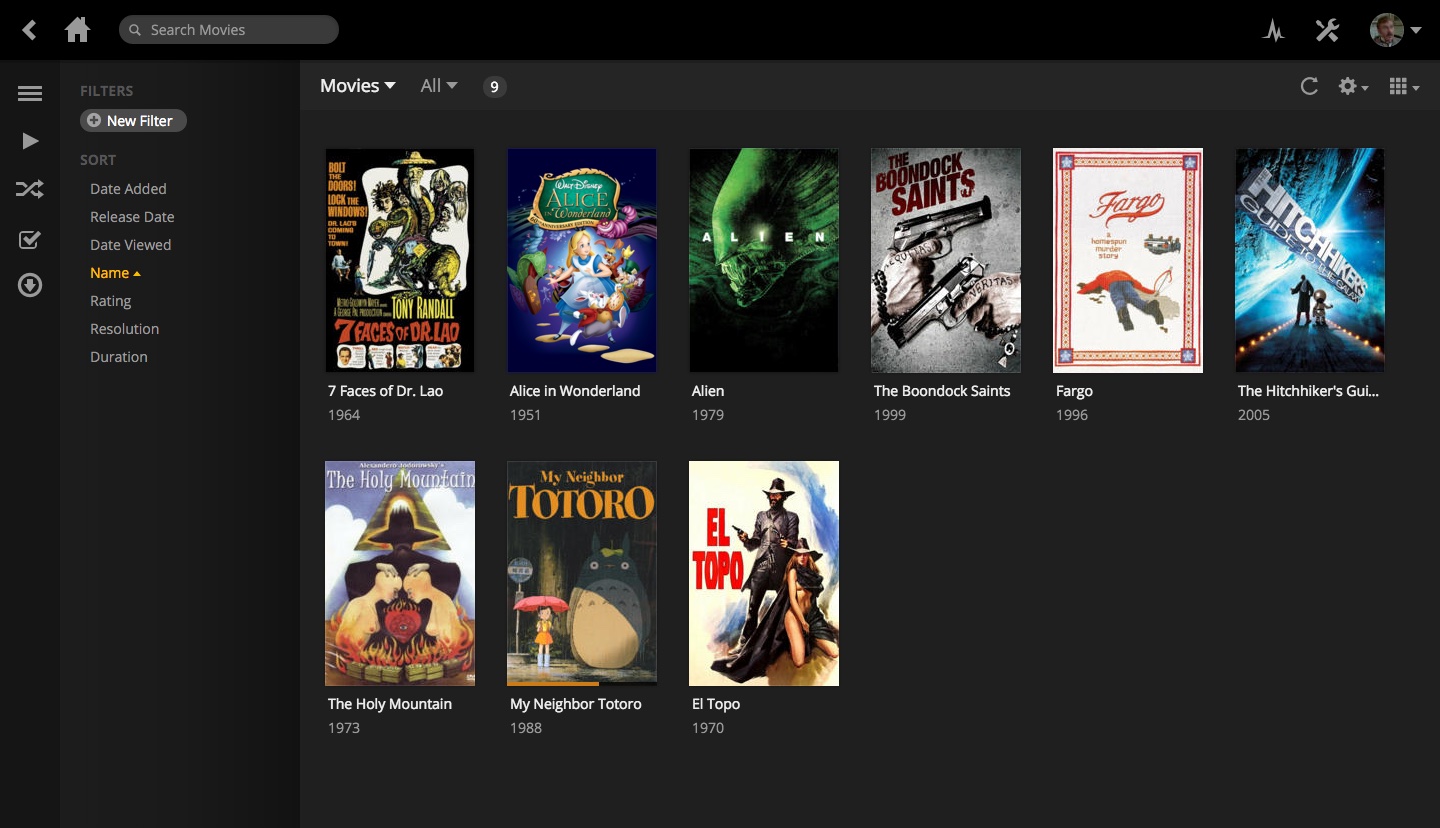
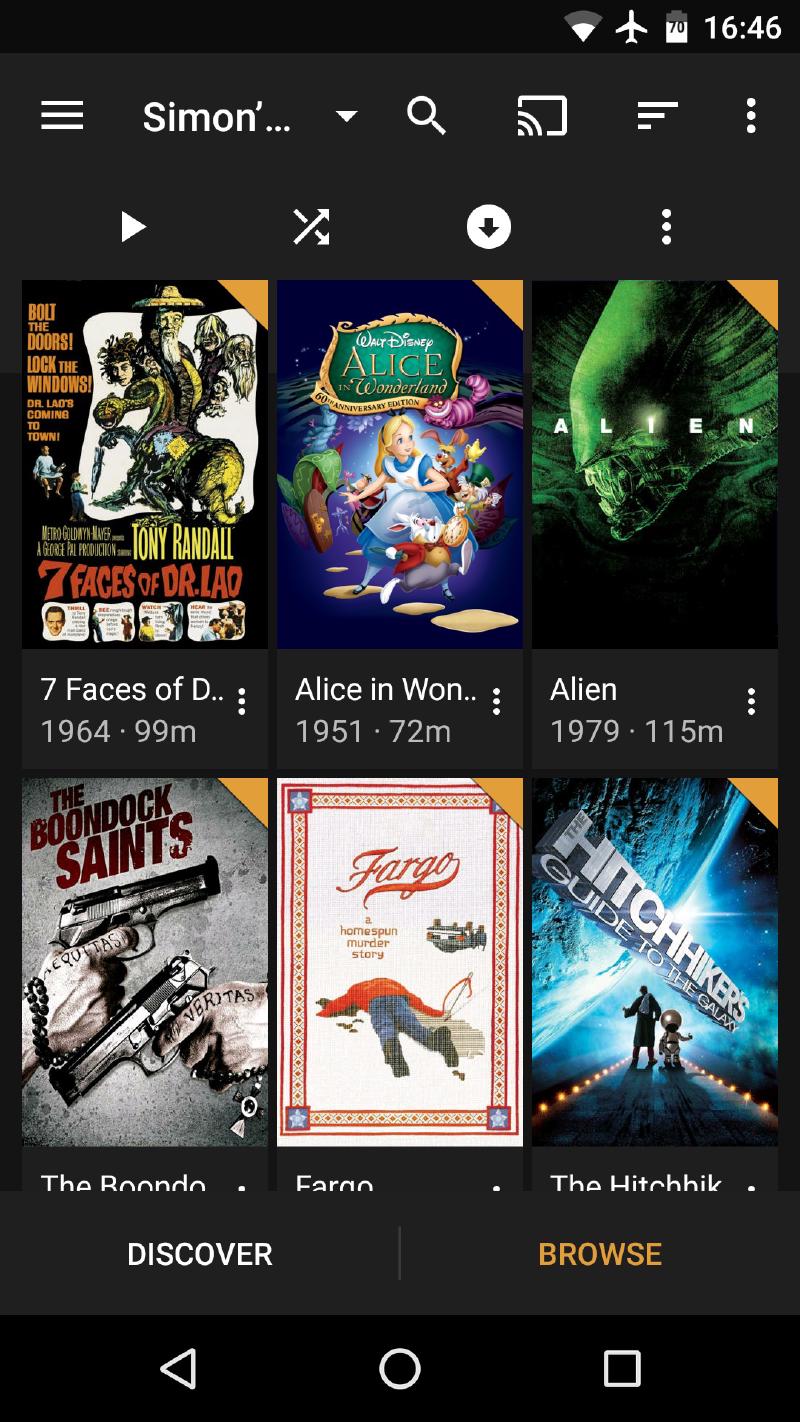
Plex provides you with a great web-based interface for browsing content.
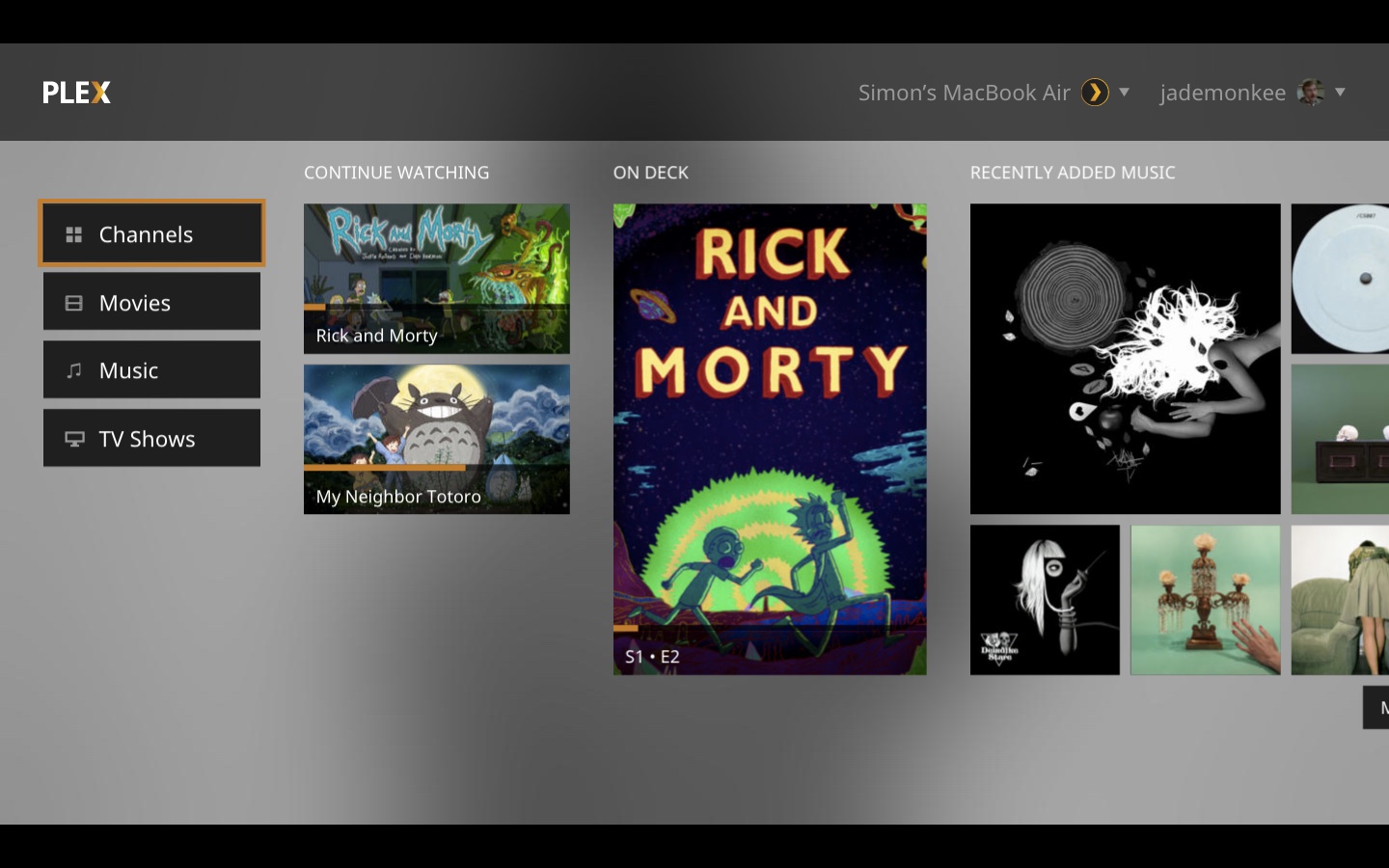
Alternatively, subscribers can install the Plex Media Player app for a better TV experience.
The features I love most about Plex are its smart media management and ease of setup and use: point Plex towards your media library and it will download a tonne of extra metadata - including movie posters, synopses, genres, cast and crew info etc. for your movies and TV shows, and album art, genres, album reviews, artist bios, popular tracks, music videos etc. for your music. It then presents this information to you in a beautiful and logical interface that works from your web browser or any number of apps designed for different platforms – including Android, iOS, Windows Phone, Xbox, PlayStation, Roku, AppleTV, Raspberry Pi, and more.
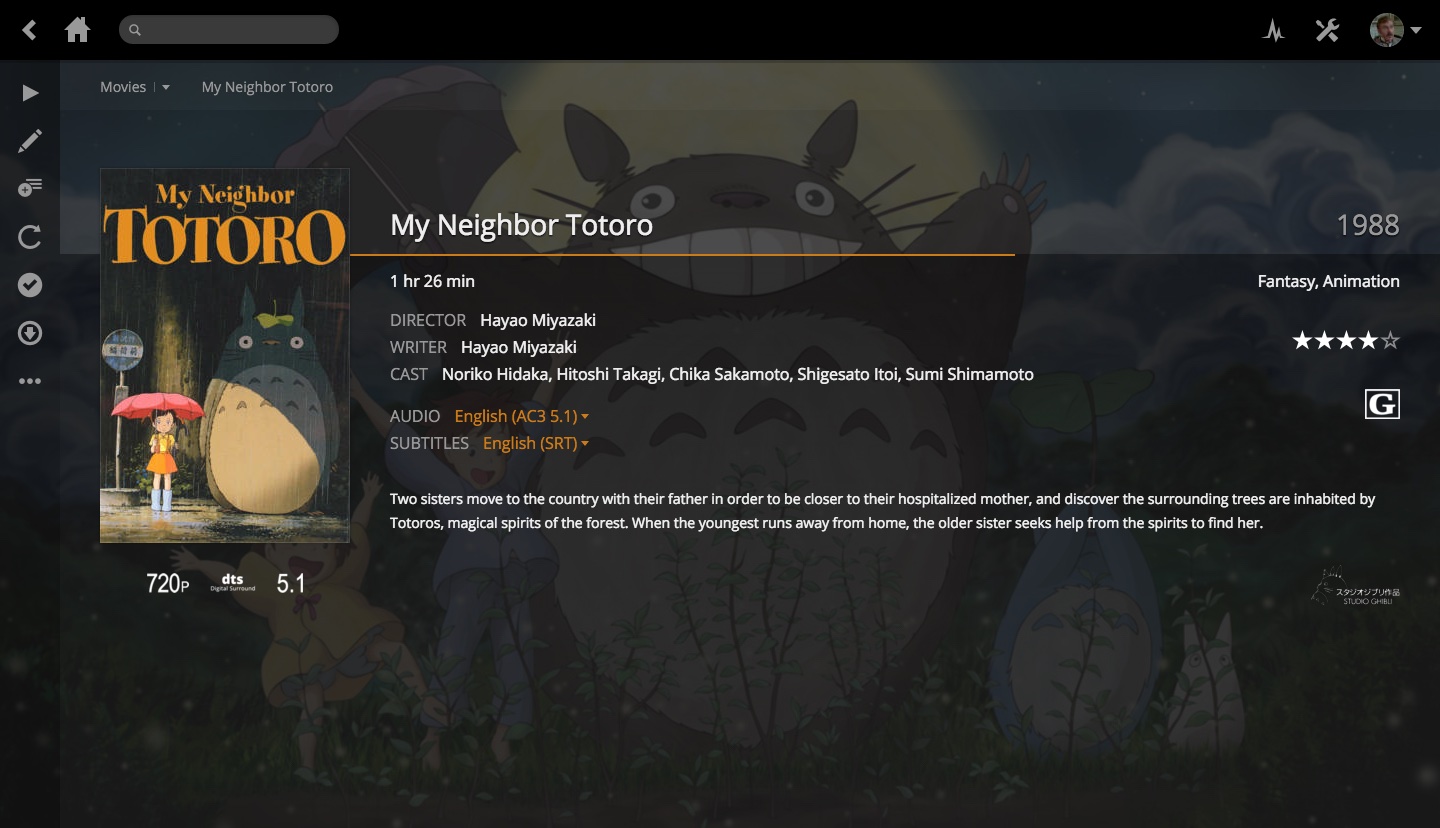
Plex brings in movie synopsis, cast and crew info, trailers, and more.
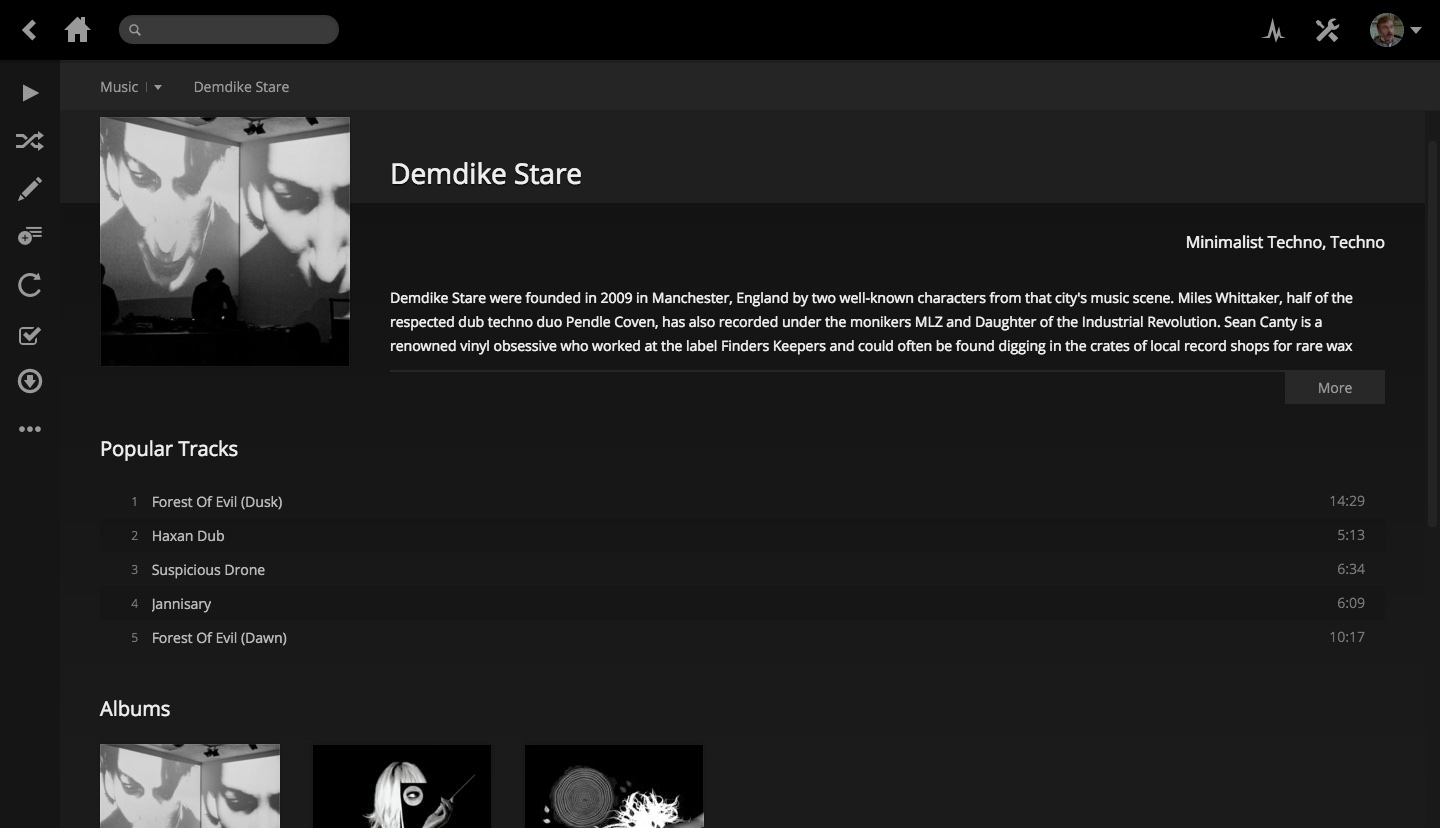
Plex is also great for browsing your music, too, providing artist bios, album reviews, and more.
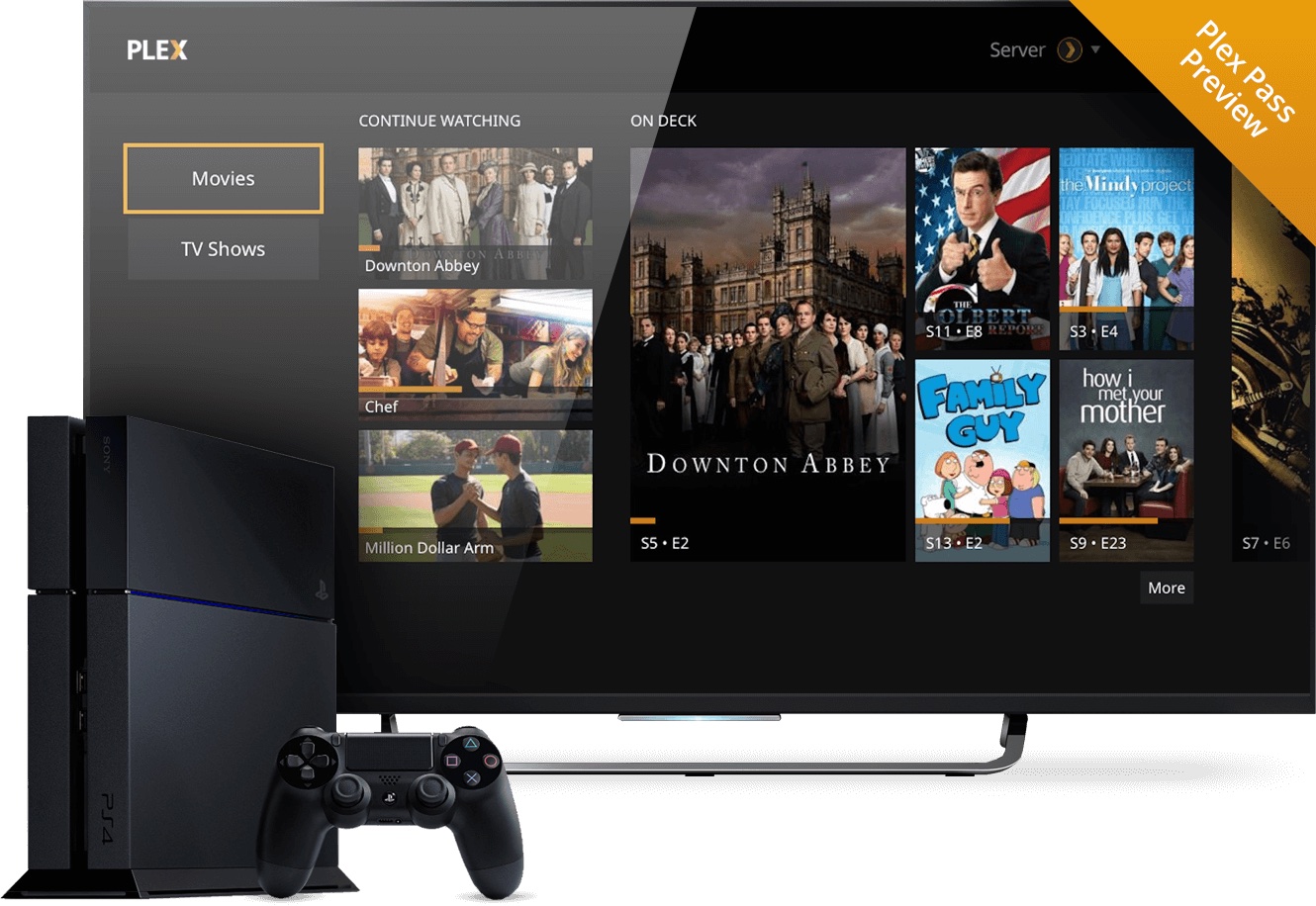
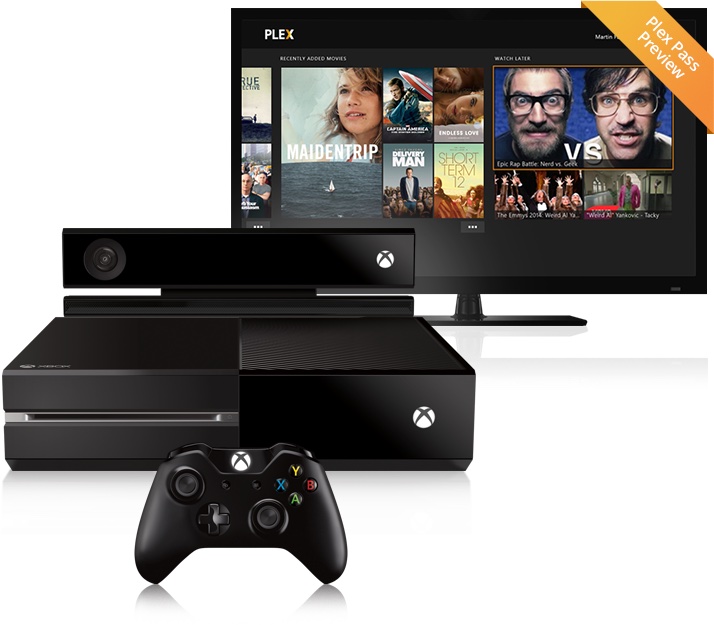
Plex also works on gaming consoles and other devices, meaning that there doesn’t have to be a screen in the house that can’t get Plex.
Better yet, it keeps a log of all the movies and TV shows that you’ve watched, and keeps this in-sync between devices – even up to the moment where you last hit stop on that show. This makes it a cinch to change rooms when a movie is interrupted, or for you to start watching something while you get ready in the morning, then switch to your mobile device to finish it while you sit on the bus.
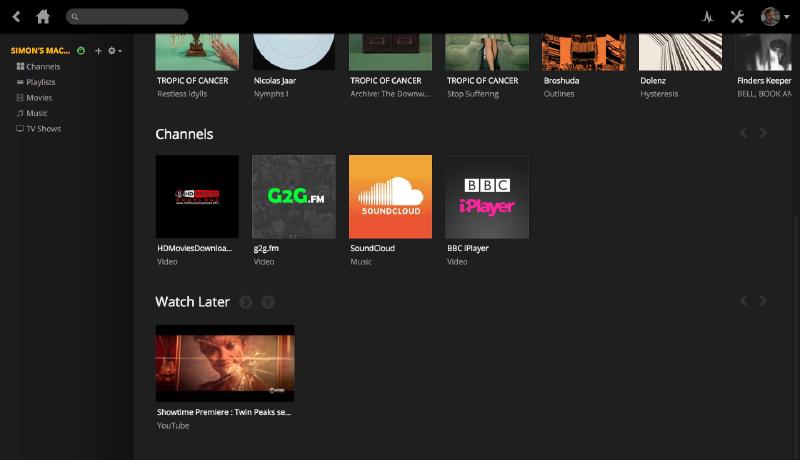
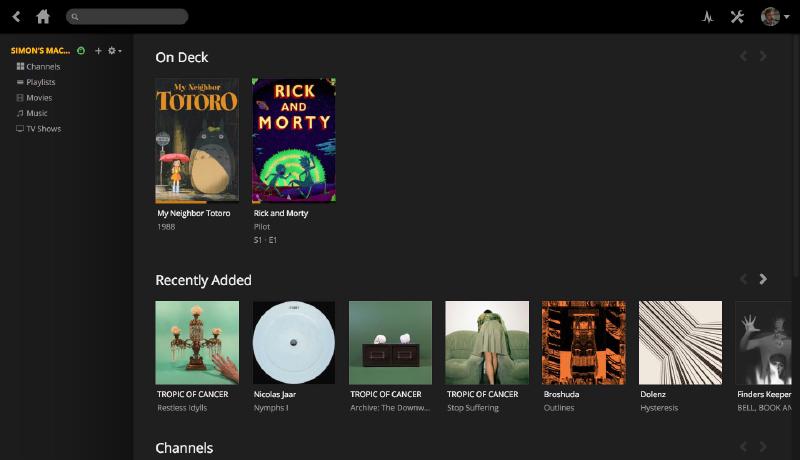
Plex can also bring in some of the best content from around the web through its ‘Channels,’ which can be accessed (and added) through the main navigation pane on the left-hand side of the Plex web interface. What makes this feature extra great is that Plex supports third-party ‘unofficial’ Channels that can bring in slightly more obscure web content (including some legally dubious content, too), making your installation of Plex sort of like Netflix, but cheaper and illegal.
Indeed, Plex is stuffed with so many features that it’s quite difficult to talk about them all in any detail, but some of my favourites include:
-
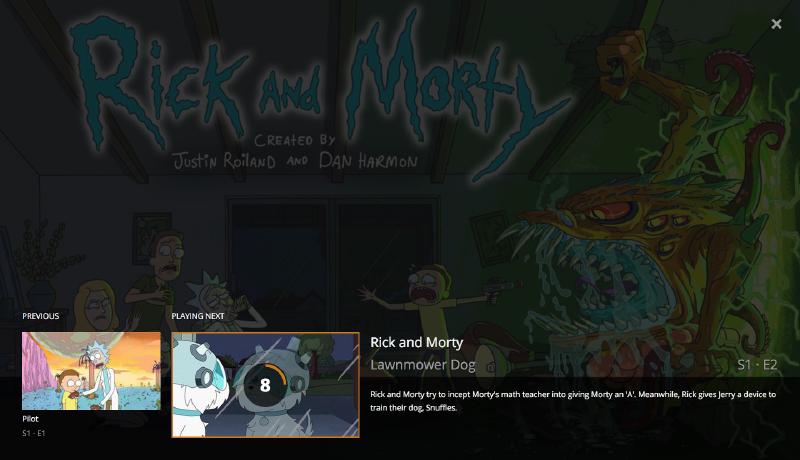
On-deck: a handy feature built into Plex’s UI where it shows any movies, episodes, or series that you’re in the middle of watching. All of this is shown on the front screen of Plex, making your most relevant content always at the ready.
-
Watch Later: Plex can create a queue of videos that you found online, but thought should wait for a better moment or bigger screen. To add videos to your Watch Later queue, simply send an email containing the URL(s) to a special email address, or press a special bookmarklet in your browser (to find your email address and bookmarklet, visit the ‘Watch Later’ queue page in Plex). For a list of supported video sites, visit:
support.plex.tv/hc/en-us/articles/200690288-Supported-Plex-It-Websites[Ed: this feature is now deprecated] -
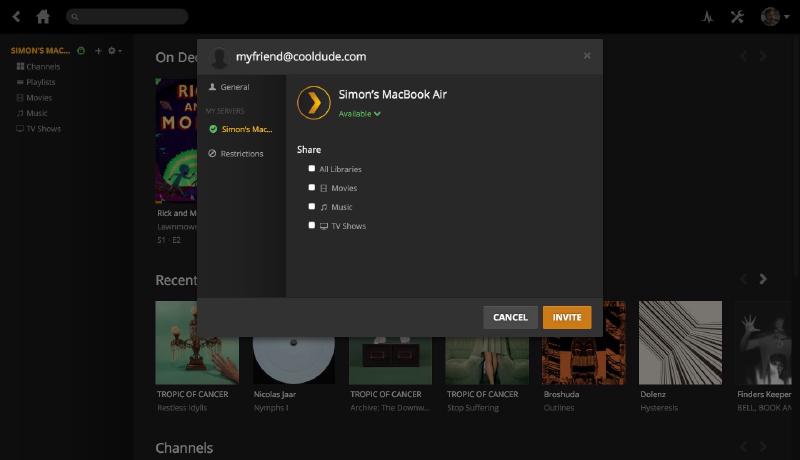
Share: If you’re feeling generous, you can share any and all of your Libraries to friends – simply enter their email address or Plex username. You can choose which Libraries to share, as well as define access restrictions (such as movie ratings or media labels) and if you want to include your channels, or restrict other features like camera uploads from mobile devices (yep, you can sync your mobile photos, too) or offline media sync for mobile devices (also that).
-
Trailers (including ‘pre-roll’): one neat little feature is the option to show ‘pre-roll’ trailers before any film you watch, just like in the movies (no choc tops included). You can choose to include trailers for movies in your collection, for movies just coming out on Blu-ray/DVD, or those just coming to cinemas (see Settings > Web > Player). Additionally, when you’re browsing your collection, you can also view a trailer for almost any film in there, which can sometimes help answer the often-posed question: “why on Earth did I download this?”
-
DLNA: if you have a device that doesn’t explicitly support a Plex app for playback, you can access any of Plex’s content through a DLNA client. See Settings > Server > DLNA to enable, or visit the Plex DLNA Support Page for more info.
Freemium – only mostly free #
Now, if your wallet tingled in your pocket when I mentioned the term ‘freemium,’ you should know that while most of the features of Plex are available in the free version, there are some extras for those that opt for a subscription, known as a Plex Pass. The free features, however, are still plentiful, and include: the beautiful interface for selecting and watching your media; the ability to watch/listen to that media on different devices, including Chromecast, Apple TV, and Roku (while mobile apps are free for subscribers, they can be purchased separately to a Plex Pass, albeit with some restrictions, see support.plex.tv/hc/en-us/categories/200006953-Plex-Apps [Ed: Link now dead, as Plex’s subsription model has now changed]); Channels; and the Watch Later queue.
If you opt for a Plex Pass subscription, you will additionally net: free access to all the Plex apps (no need to purchase them separately), which allow you to stream or download your media to your mobile device (Android, iOS, Windows Phone), or view it on your (compatible) Smart TV, PlayStation, Xbox, or Android TV; Cloud storage (such as Dropbox) upload of your media, so that you can access it when your home PC is turned off; and the ability to create a hierarchy of users in your household, each with their own libraries, watched/unwatched lists, and defined access restrictions, such as no R rated films for the kids.
Also, as an administrator of the home, you can monitor what any user is watching or listening to. You can visit Plex Support to learn more about multi-user setups.
How much will all this cost? A Plex Pass subscription can be purchased month-to-month for USD $4.99 (less than Netflix), yearly for USD $39.99, or a once-off lifetime membership for USD $149.99, which presents the best value if you’re confident that you’ll use the service for more than 3 years. [Ed: lol not anymore]
Setting it up #
The first thing to do before opting for a Plex install is to figure out how many of your TV/stereo connected devices it can run on (I say stereo, as they don’t necessarily need a screen, too). So visit the Plex App(s) Download Page and take a look at the list of the different Plex apps (those that connect to Plex Media Server to deliver content), and see if it’ll work for you. Perhaps worth noting is that you can add a cheap Chromecast or Raspberry Pi (running Plex Media Player or RasPlex [Ed: both now defunct. Try LibreElec to run Kodi with the PM4K plugin for the easiest Raspberry Pi Plex experience]) to bring Plex to any screens that don’t currently have a supported device connected.
Now that you have some compatible devices, let’s get Plex running in your house. For Plex to work, you need to install the Plex Media Server software on the computer (or NAS) that stores all your audio and videos. Plex Media Server is the software that downloads all the metadata for your music, movies, and TV shows, provides the neat web interface for you to browse them, and transcodes the content in case it isn’t in a suitable format for the device you’re viewing it on. As you can access all of your media from a web browser, Plex Media Server doesn’t need to be installed on the PC that you will be viewing it from, but it can be if you want.
Plex Media Server can run on just about every platform out there, including Windows, Mac, Linux (ready-made for Ubuntu, Fedora, CentOS) and even FreeBSD. It’s also available for many Network Attached Storage (NAS) devices, including ones from Synology, Netgear, QNAP, unRAID, Drobo, Asustor, Thecus, Seagate, and WD – note though that performance on most NAS devices, particularly when watching more than one stream, can be frustrating. As such, you’re almost always better off installing Plex on a proper computer. It need not be the latest and greatest, but you will want a semi-capable CPU (my 7-year-old Intel i7 works fine, even when transcoding HD). To see how capable a PC you may need, visit the Plex System Requirements page.
Speaking of requirements, this also gets me on to the thought of storage: if you can, store your movies and TV shows on fast ‘spinning disk’ (SSD is overkill) drives – so called ‘green drives’ may introduce stuttering and excessive buffering when seeking in videos, particularly if there’s more than one device streaming content. Also, don’t store your media on a computer other than the one you’ve installed Plex on; you’ll hit the network twice when watching if you do, which will only end in heartache.
If you can, you’ll also benefit from installing Plex on (or moving its storage folder to) a SSD drive. Doing so will greatly speed up the browsing of your extensive collection, particularly when you’re tearing down a long list of movie posters trying to find that one movie you can’t remember the name of.
And, finally, your server should have a wired connection to your network, preferably a gigabit one – avoid Wi-Fi like the plague. If at all possible, you’re also better off using wired connections for any of the Plex clients (those that you will be watching media on), too, but it’s not as crucial a requirement, as you can always drop the quality if you run into streaming issues.
Now, while Plex’s metadata scanner is pretty forgiving, there are some basic requirements that your media should meet (mainly clearly labelled folders). To get an idea of how your media should best be organised, I really recommend reading the information at the Your Media Plex Support Page.
Now that you have your server sorted, head over to the Plex Media Server Download page to grab the correct version for your operating system.
While that’s downloading, start a Plex account by pressing the orange “sign up” button up the top right of the Plex.tv website. Make sure that you activate your account (by pressing the link in the email they’ll send you) before installing the software, as it’ll cause issues if you don’t.
Once you’ve activated your account, install the server following the on-screen instructions. After installation completes, you’ll be redirected to the Plex interface in your browser – app.plex.tv/desktop/ (despite the URL, it’s actually running from your Plex Media Server, not Plex’s website). This is the main point of interaction for Plex – you use this web interface to manage settings, browse your library, and even watch/listen to content on computers (unless you install the optional Windows 8/10 app, Plex Home Theatre, or its replacement, Plex Media Player, for HTPCs) [Ed: now deprecated].
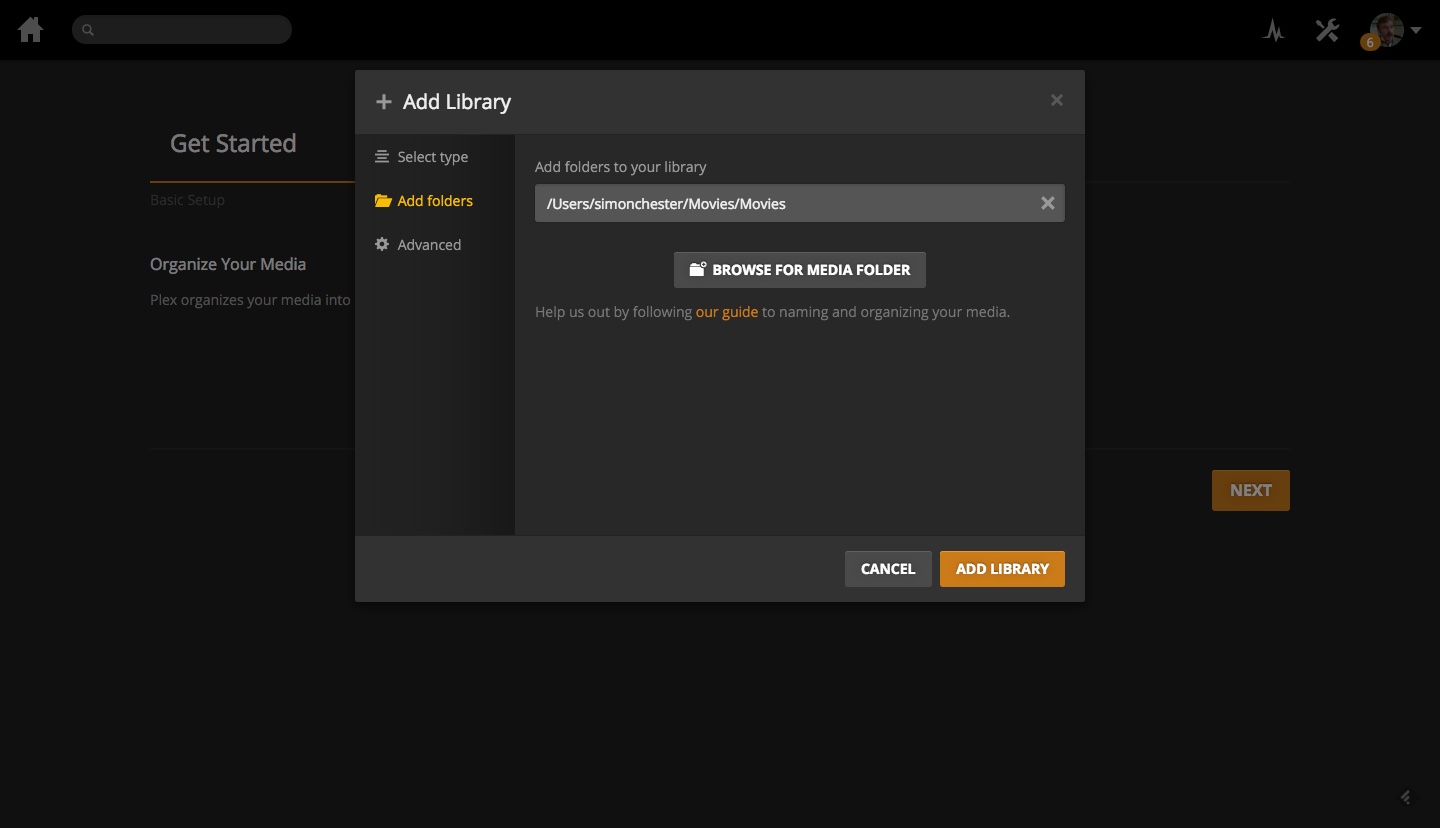
The setup wizard is pretty self-explanatory, but you may benefit from a bit of info on the terminologies used, in particular the concept of ‘Libraries.’ You will have one library per media type, that is, one each for movies, TV shows, music, photos, and home videos. There’s no limit to how many Libraries you can have, so if you want to separate out your movies/music from your partner’s, then just add one Library each and name them accordingly. Similarly, you can also combine different directories into a single Library, so if you have movies spread across several hard drives, just add multiple folders/locations when creating your movie Library.
Once you’ve added a Library, Plex will start scanning its contents and downloading the extra metadata (such as movie posters etc.) from the ’net.
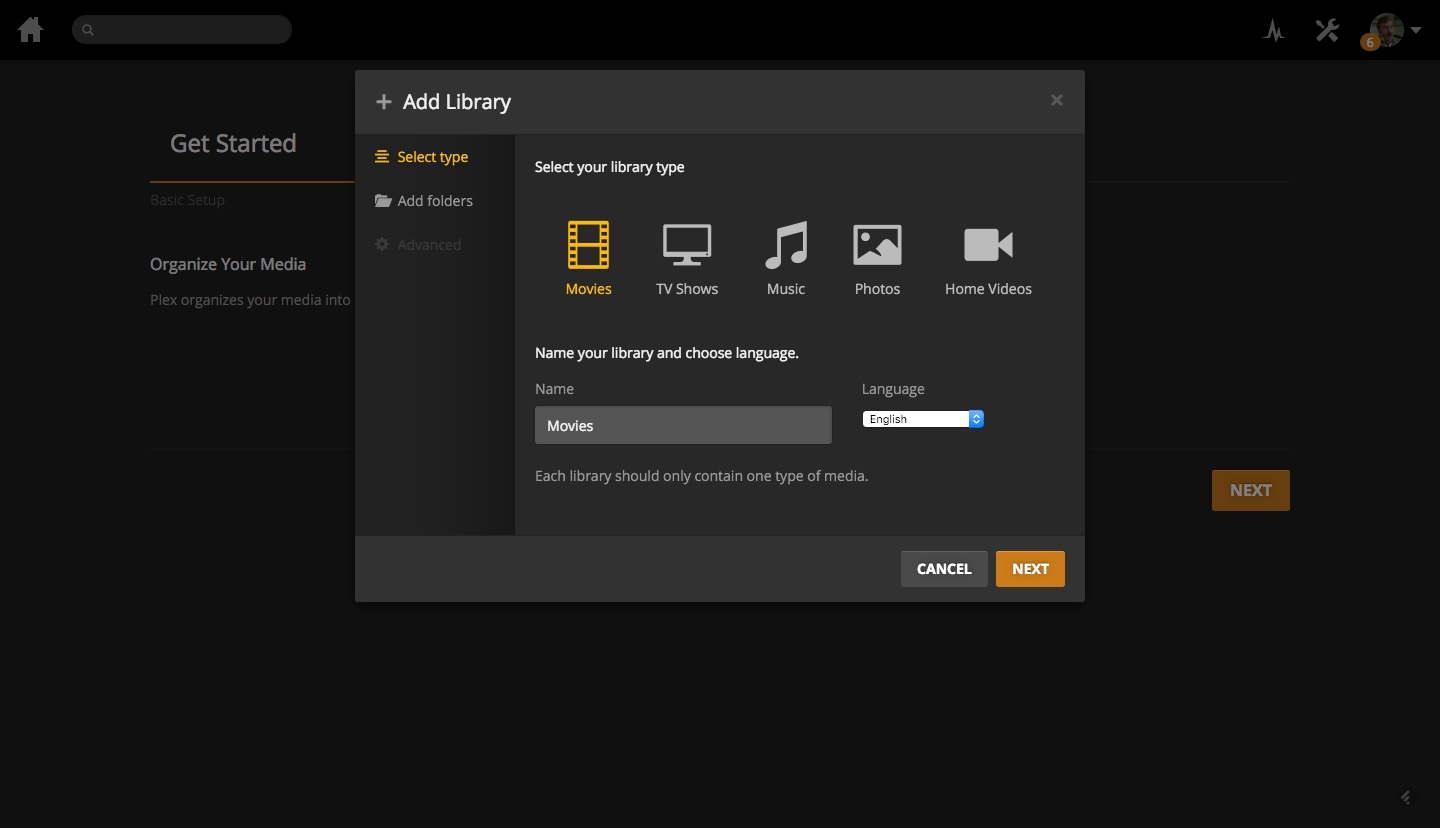
When setting up Plex, select the type of media you’re adding…
…then tell it where that media is located. You can add multiple directories here.
When adding a music library, you’ll see an option to create a ‘Premium Music Library’ (available to Plex Pass subscribers only). This will additionally download enhanced metadata for your music, including artist bios, album reviews, links to ad-free music videos, and more. It also allows you to create a ‘Plex Mix’ that will create a mix of music similar to a track in your library (similar to Spotify radio or Pandora), as well as mood-based dynamic playlists.
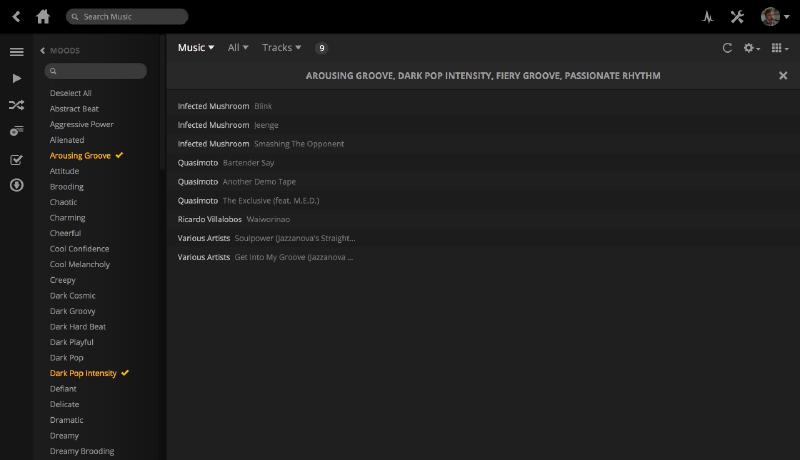
These mood-based playlists are possible thanks to integration with the Gracenote music database, which brings down appropriate genre and mood tags for all of your music. To create one, simply press the three stripe options button from the Music view, change the view to ‘Tracks,’ then press ‘New Filter’ and choose any moods or genres that you want to compile. You can play it now, or save it as a playlist for later access. If saved as a playlist, it will automatically add any new music in your library that also fits into the specified moods or genres. Neat! *[Ed: sidenote: Plex now offers perhaps the best smartphone music player app in known history: PlexAmp. Go check it out (as well as its related project, Caldera, which also supports MilkDrop visualisations, which excites me more than it should).]
Expanding functionality through Channels #
[Ed: it’s worth noting that these community-created channels have since been deprecated and replaced with free (ad-supported) live TV channels with some pretty decent content… if you can handle the ads.]
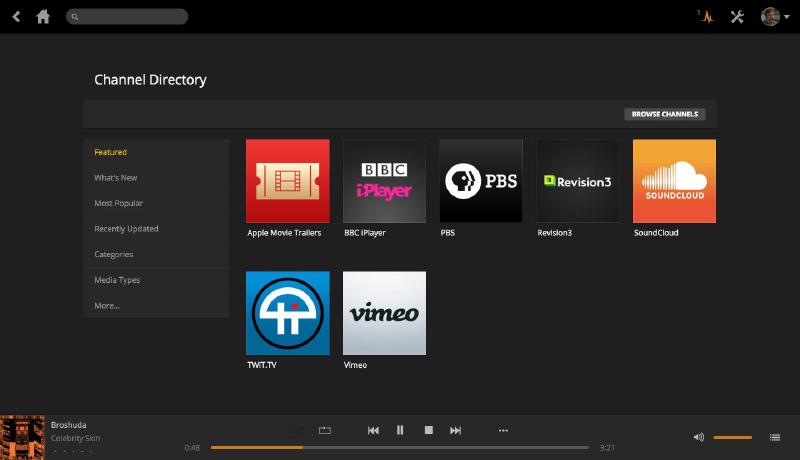
As mentioned earlier, you can add online content to Plex by visiting the ‘Channels’ section, then choosing the ‘Install Channels’ button. Channels collect content from across the web, including video (such as TED talks or TWiT.tv) and music streaming services (such as Soundcloud). It’s worth pointing out here that Channels don’t yet work on every device – notably not the PlayStation or Xbox apps, although support is coming soon. On the surface, Channels don’t seem terribly extraordinary – that is, until you start browsing through some of the third-party ‘unofficial’ Channels.
As I mentioned earlier, unofficial Channels can pull down content from just about any website out there for playback through Plex. As these are created by users, and not Plex itself, they are barely regulated, so can contain content from some of the legally dubious video sites out there, which is great news for pirates.
There used to be a sort of ‘app store’ for these unofficial channels, which would allow you to browse and install them from within Plex, but it’s been out of action since last January. However, this doesn’t prevent you from searching for and installing the channels yourself: installing them is just a matter of downloading a zip file and extracting its content to the Plex Plug-ins folder. You can learn more about unsupported channels, as well as get info on how to find and install them at support.plex.tv/hc/en-us/articles/201375863-Channels-from-Other-Sources [Ed: dead link]. There is an extensive list of unofficial channels (which includes legitimate streaming services as well as those less so) at forums.plex.tv/discussion/96063/support-find-my-plug-in-here-for-support [Ed: no longer relevant], and don’t forget the Plex unofficial channels forum at forums.plex.tv/categories/plex-channels [Ed: you guessed it…].
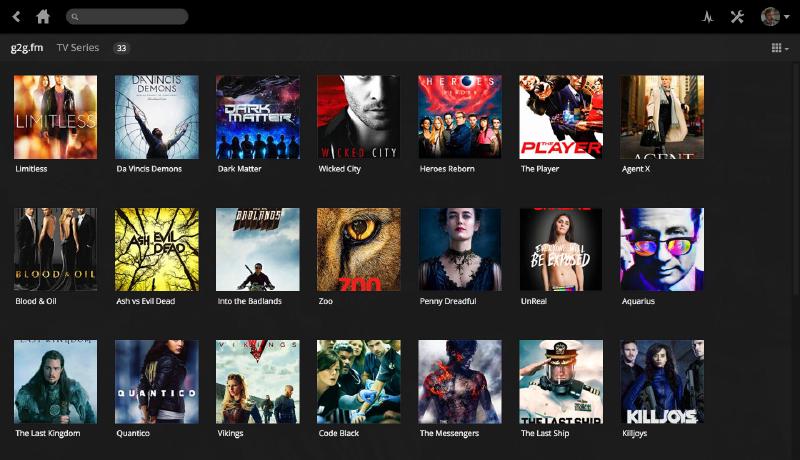
One of the handiest ‘grey’ channels to install is G2G.fm, which gives you access to a tonne of new release movies and TV shows (visit the support forum at forums.plex.tv/discussion/111730 [Ed: dead] for the download and help), ready to stream straight to Plex. Another channel with a similar purpose is HDMoviesDownload.pro, available at forums.plex.tv/discussion/161116 [Ed: you knows it].
To install unofficial channels, follow the instructions at: support.plex.tv/hc/en-us/articles/201187656-How-do-I-manually-install-a-channel- [Ed: maybe I should have just deleted this whole section…].
Streaming to mobile #
Plex’s cherry on top of the icing on top of the cake is its ability to stream to mobile devices, and what makes it super special is that – for 99% of users – it requires no more setting up than a PC running Plex Media Server, a semi-decent home internet connection, and logging in to a mobile app.
Plex Pass subscribers get free access to Plex’s mobile apps (you just need to log in to the app of choice), but if you don’t want the subscription cost, you can also opt for a once-off in-app purchase, which will give you almost all of its features (notably missing is the ability to sync videos to your device for offline viewing).
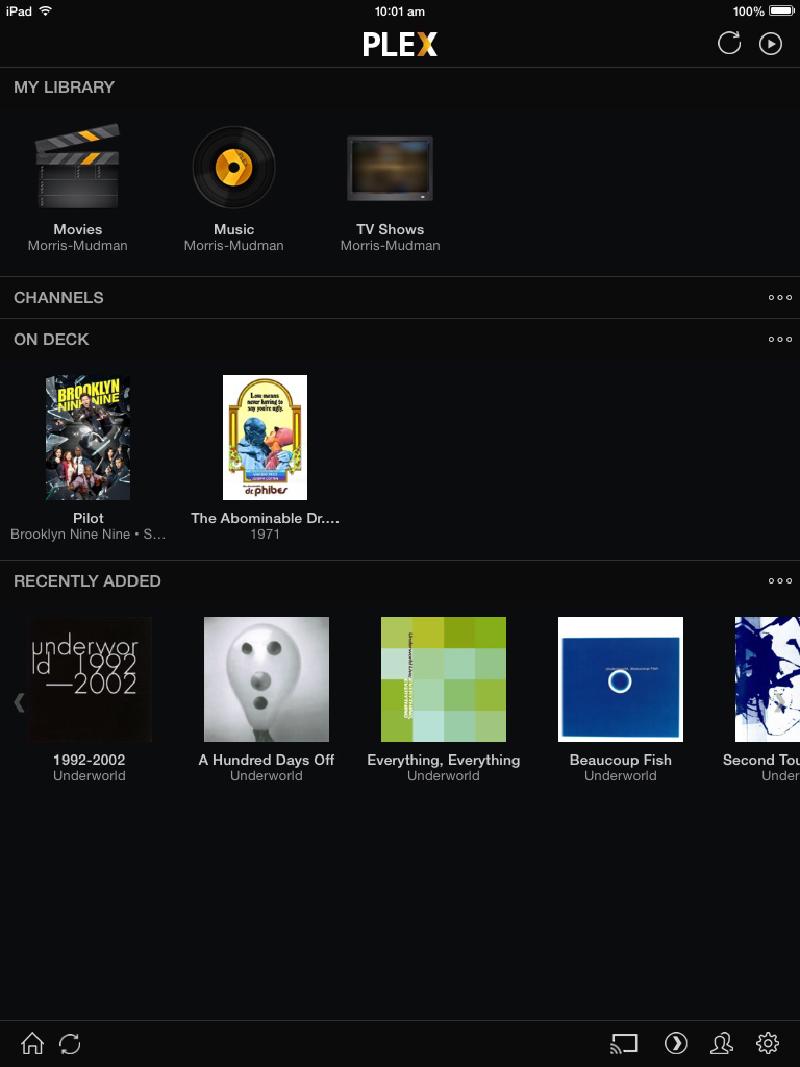
Once you’ve logged in to a mobile app (as a Plex Pass subscriber), or logged in and unlocked an app (as a free user), you’ll see the same library as you would from the Plex web browser interface – you’ll have the same On Deck, the same Watch Later, and same content. Streaming is therefore as simple as selecting what you want to watch or listen to.
If you’re having trouble connecting/getting your media to appear, you should open up the Plex web interface, click on the little cog icon next to your computer name in the left-hand navigation pane, then choose ‘Settings’. The second option in the list will be ‘Remote Access’ and you should have a green tick next to it. No green tick? Visit this troubleshooting guide for help.

Notably, the mobile apps aren’t just about streaming your media: they also give you an interface to browse and send any Library content – or any media stored on your mobile device – to any other Plex device in your house, including Chromecasts or AirPlay compatible devices, making them fully-fledged remote controls. No more fiddling with a keyboard and mouse while sitting on the couch! Touchscreen FTW!
I’ve now covered the major features of Plex, and as such you should now have a fully functioning server, ready to stream to every device you own. However, there are still some lesser features buried within option menus that I wasn’t able to cover here. As such, I recommend you explore the options in both the web interface and mobile/other apps.
Plex is, in my opinion, the king of media streaming software. Indeed, I’m sure that, after using it for a little while, you’ll agree with me, too.
Problems?
The team at Plex have put together some of the most accessible and thorough documentation I’ve seen, so if you have an issue, you’ll probably find an answer to it at support.plex.tv.
Watching TV
Despite the plethora of features I’ve just described, one notable absentee is good ol’ TV viewing. Well, next month I’ll cover some additional software that can work as a PVR in tandem with Plex.